LazyBoard - Phrase Keyboard, LazyBoard - Phrase Keyboard, LazyBoard - Phrase Keyboard lets you convert frequently used sentences into short shortcuts and one-tap inserts so you can respond faster across apps. This smart phrase keyboard saves time by mapping long messages to concise key combinations, and it includes a clipboard manager, home-screen quick access, and simple editing tools so your most-used text is always within reach.
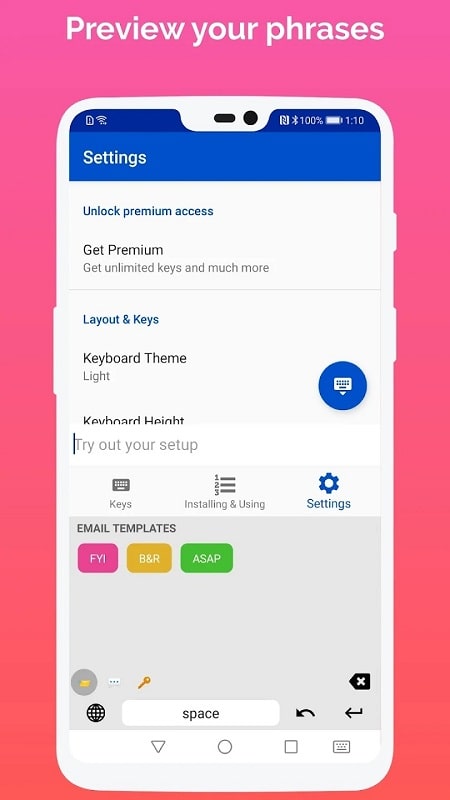
The app provides a flexible shortcut system that allows creation and assignment of custom abbreviations to paste full phrases, signatures, or multi-line responses in a single action. A built-in clipboard manager automatically collects recently copied text for instant reuse without having to switch apps, and home-screen widgets or quick-access panels surface saved phrases and clipboard items for rapid insertion. The dynamic input editor supports organizing phrases, renaming shortcuts, and previewing the final text before inserting it into any text field.
Typing a saved shortcut triggers the full phrase either by a short key combination or a tap on a suggestion, depending on how you configure the keyboard. Shortcuts can be triggered by typing an abbreviation, long-pressing selected keys to reveal a phrase menu, or using the keyboard’s suggestion strip for one-tap replacement. The clipboard manager runs locally and lists recent copies in chronological order, letting you browse, select, and paste snippets directly into the active input field without leaving the app you are using.
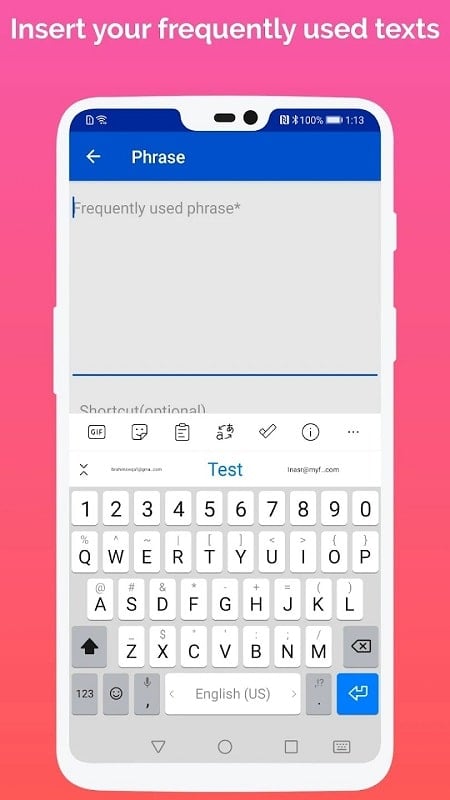
Getting started is straightforward: open the app to create new shortcuts, enter the phrase, and assign a memorable shortcut string. The keyboard interface supports editing phrases inline, rearranging items, and deleting entries with simple gestures. When typing in any app, switch to the LazyBoard keyboard to view suggestions and tap to insert; optional long-press and swipe gestures provide alternative ways to activate frequently used content. No complex menus are required once shortcuts are set up, so common replies become accessible in a few taps.
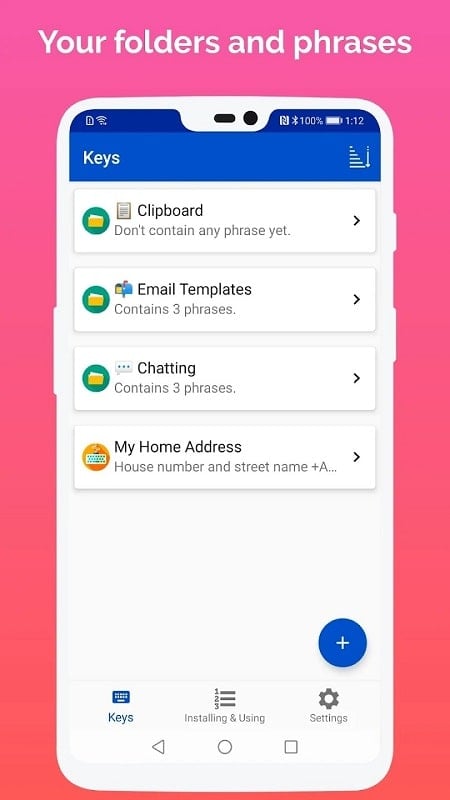
Rather than a game-style progression, progression here means building and refining a personal library of phrases. Start with a few high-value shortcuts for common replies and gradually expand into folders or tagged groups for work, family, or specific projects. Over time the keyboard becomes more powerful as you accumulate and organize shortcuts, improving response speed and consistency. The ongoing usefulness of the tool encourages regular updates to your phrase library and periodic cleanup so the most relevant content stays near the top.
LazyBoard offers options to tailor the keyboard’s look and feel so it fits your workflow. You can adjust key size and suggestion strip behavior, pick contrast-friendly styling for readability, and set the order of home-screen shortcuts for one-handed use. While the core app stays lightweight, these visual and interaction choices help the keyboard integrate seamlessly with different device sizes and personal preferences.
The keyboard is designed to work locally on your device, so core features operate offline without requiring an internet connection. Accessibility considerations include large-key and high-contrast modes for users who prefer clearer visuals, and predictable gesture patterns that make it easier to trigger phrases without precise movements. Because clipboard history and phrase storage are local, you can control when sensitive items are removed or kept, and you can disable automatic clipboard saving if you prefer to manage copied content manually.
LazyBoard stores your phrases and clipboard items on the device; users concerned about privacy should review and adjust the clipboard settings and clear history when appropriate. The main trade-off is the initial time required to create and organize useful shortcuts, and some very context-specific or highly personalized messages may still need manual editing after insertion. Regular housekeeping of saved items helps reduce accidental pastes of sensitive content.
Common scenarios where the keyboard adds value include replying to routine customer messages, sending frequent logistical updates, pasting standard email signatures, and reusing boilerplate responses across messaging apps. Freelancers, customer support agents, and busy professionals will find it speeds up repetitive tasks, while casual users benefit from composing longer messages more quickly without repeated typing.
Start by identifying the five to ten phrases you use most and create shortcuts for them, then expand by grouping phrases into categories like work and personal. Test different trigger methods to see whether typing an abbreviation, using long-press, or tapping a suggestion is fastest for you. Regularly prune obsolete entries to keep the keyboard responsive and focused on the phrases that matter most.