


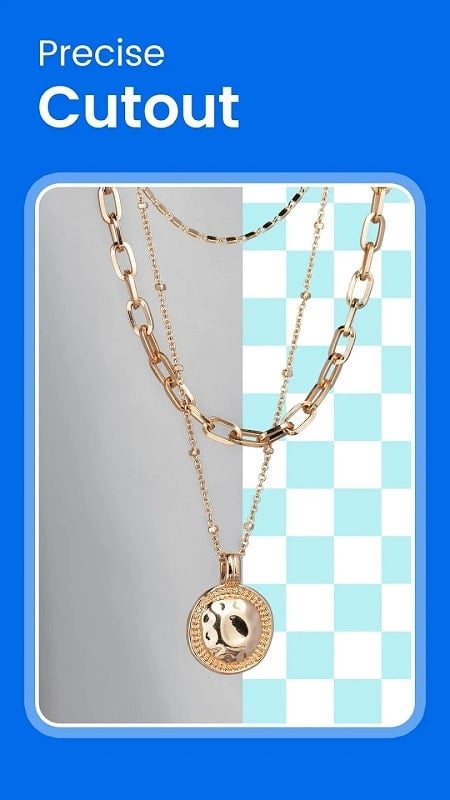
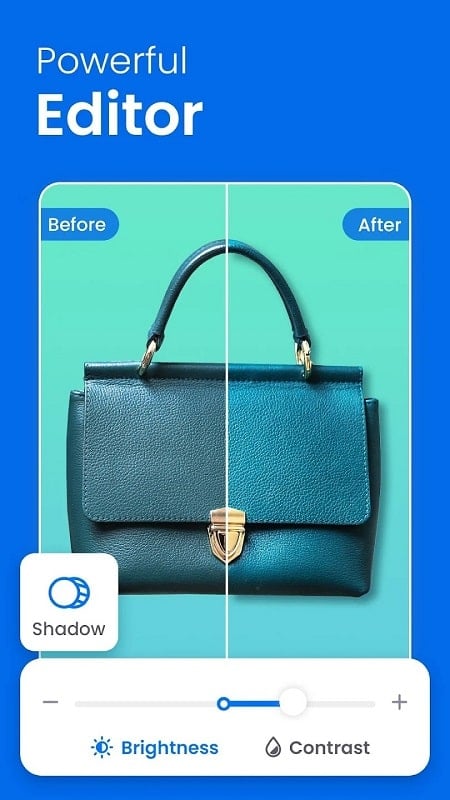

Most photo editors force you into fiddly settings before a usable image appears. PicWish streamlines that workflow by combining automatic photo analysis with easy manual tools so you spend less time guessing and more time sharing. The app is positioned for anyone who wants sharper portraits, cleaner product shots, or creative collages without a steep learning curve. Expect automatic suggestions and one-tap fixes alongside templates and basic retouching so a casual user and someone preparing images for social posts can both get good results quickly.
Everyday enhancement: Quick fixes for brightness, contrast and clarity that make routine snapshots look cleaner and more polished.
Creative composition: Templates and collage tools for combining images into posters, social banners or family memory pages.
Photo repair and retouch: Tools aimed at restoring old or imperfect photos, reducing noise and improving small details.
Auto-evaluate and suggest: PicWish analyzes each image and recommends adjustments, so you can accept a suggested edit or fine-tune manually.
One-tap enhancement: Apply a single improvement across a photo to sharpen, brighten and balance tones without digging into individual sliders.
Crop, rotate and frame: Basic composition controls are included for trimming shots, straightening horizons and applying decorative frames.
Selective focus and highlight: Use soft blur or boosted highlights to draw attention to a subject while keeping backgrounds understated.
Collage and poster templates: Combine multiple photos into preset layouts and export share-ready designs for events or social updates.
Start with auto-suggest: Let PicWish propose a base edit, then make small adjustments rather than starting from scratch.
Batch process similar shots: When you have several images from the same scene, apply one edit and copy it across to keep a consistent look for an album or online listing.
Use selective blur for product photos: Slight background blur can make items stand out when you prepare images for a marketplace or portfolio.
Repair scanned photos carefully: For old prints scanned at home, run restoration tools first and then tweak contrast to preserve texture and avoid over-sharpening.
Do I need advanced skills to use PicWish?
No. The interface is built so newcomers can accept suggested edits, while more experienced users can adjust individual controls for a tailored result.
Can PicWish restore faded or damaged photos?
Yes. There are tools aimed at improving clarity, filling missing detail and reducing noise so older or imperfect images look better for sharing or archiving.
Will edits preserve image quality?
Edits are designed to retain as much original detail as possible. When saving, review export options to match the resolution or format you need.
Are there ready-made templates for social posts?
PicWish includes templates and frames intended for quick poster or collage creation, which speeds up producing content for social channels and invitations.
PicWish combines automated photo analysis with hands-on tools, making it useful whether you prepare images for casual sharing or lightweight creative projects. If you value a fast first edit plus simple controls for polishing results, try PicWish and see how much time you can save on everyday photo tasks.